
Q3 2026 Market Report
/
Q3 Market Reports: Now Instant. Now in The Hub.
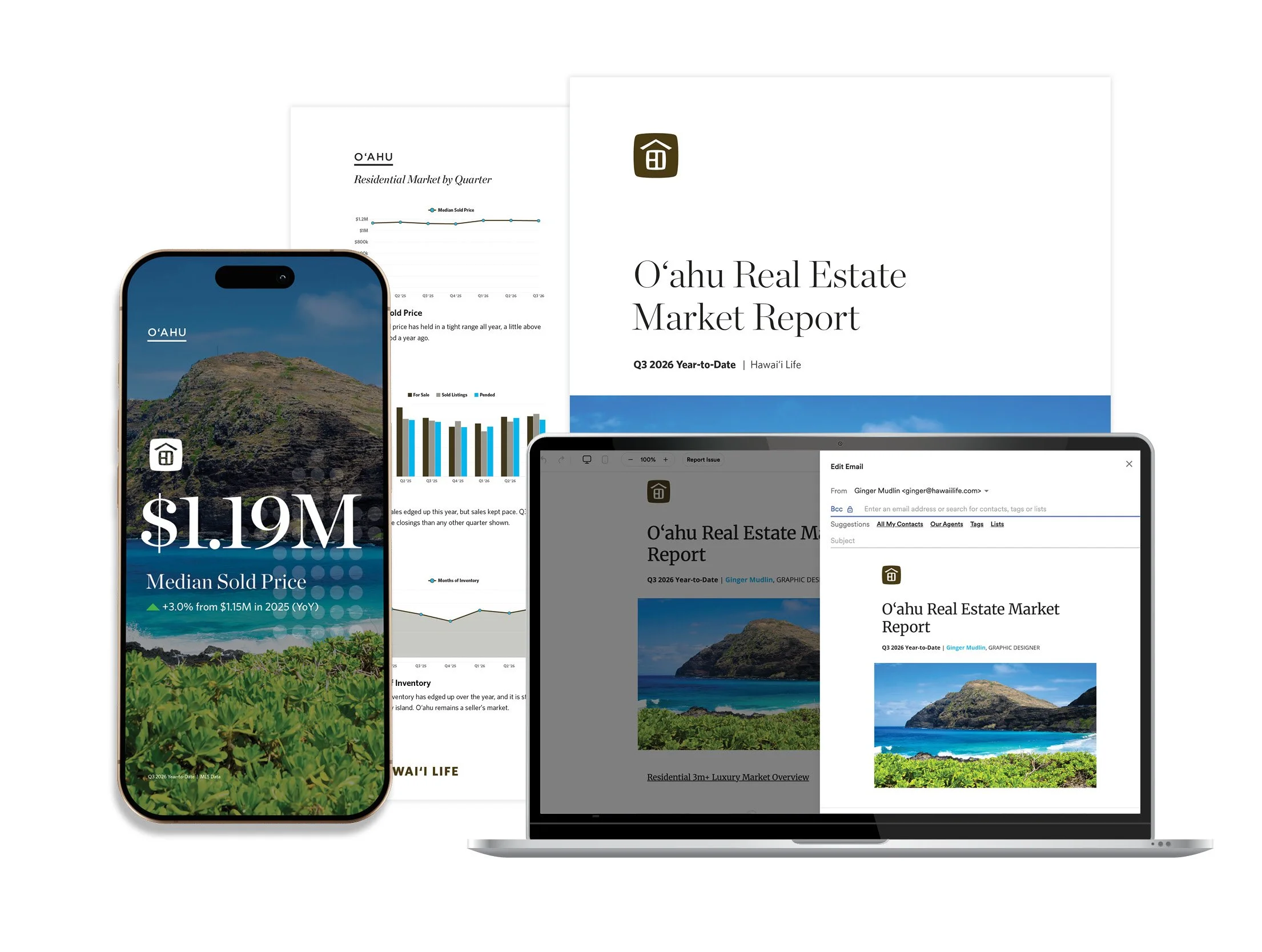
The wait is over. You no longer need to submit a request for digital reports. Starting this quarter, you can access, customize, and download your Market Reports instantly inside The Hub.
Digital is DIY: Create emails, social posts, and PDFs in minutes.
Print is Full-Service: Want that professional mailer? The Create Team is standing by to handle your high-quality Printed Mailouts.
Share Email, Social and PDFs from The Hub
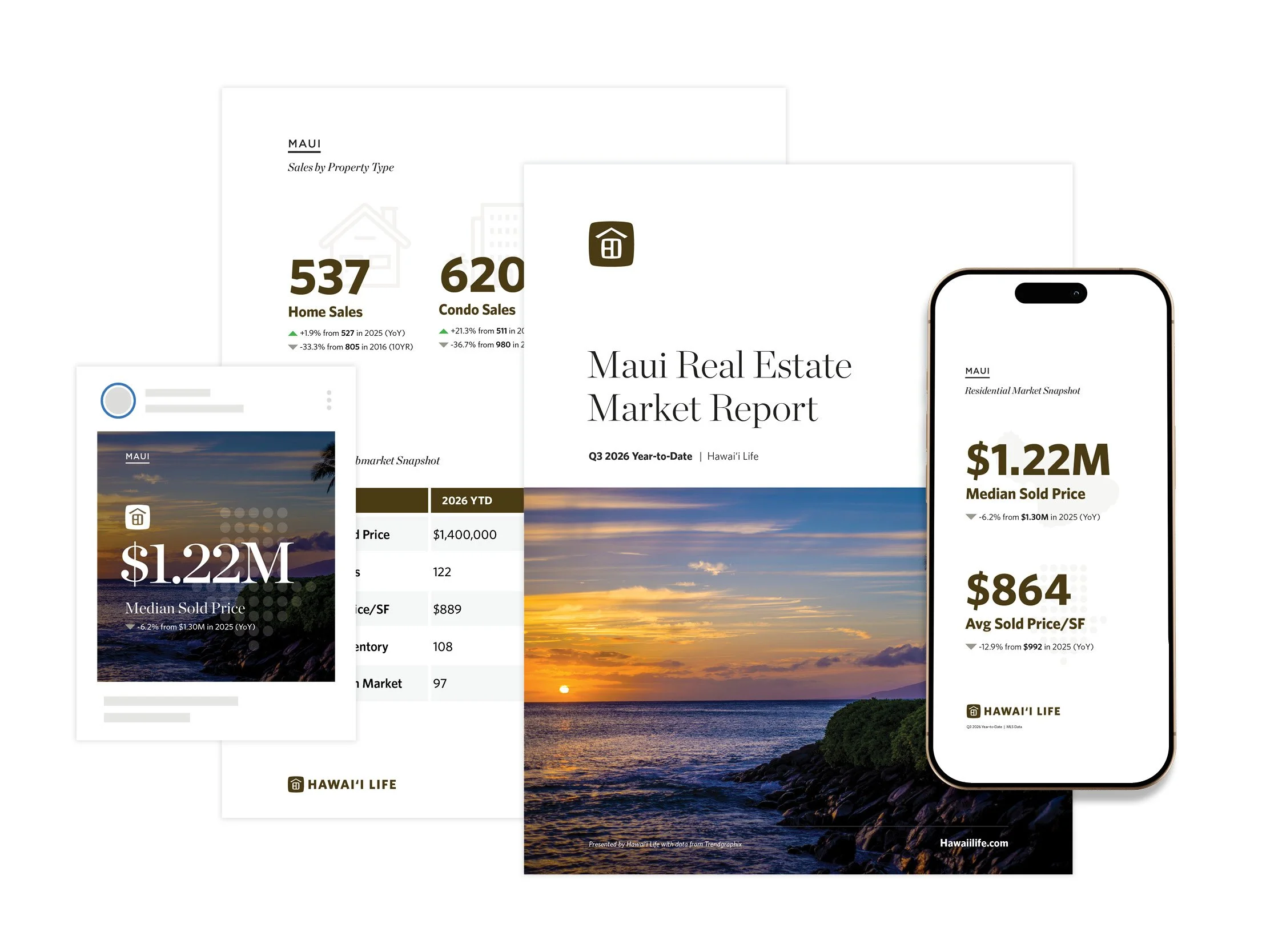
Market Report Emailers
Editable, branded email templates ready to send to your SOIMarket Report PDFs (print or digital)
Presentation-ready PDFs for downloads, attachments, or printingPromotable Social Content
Market stats, charts, visuals, and short island-specific videos sized for social and digital sharing
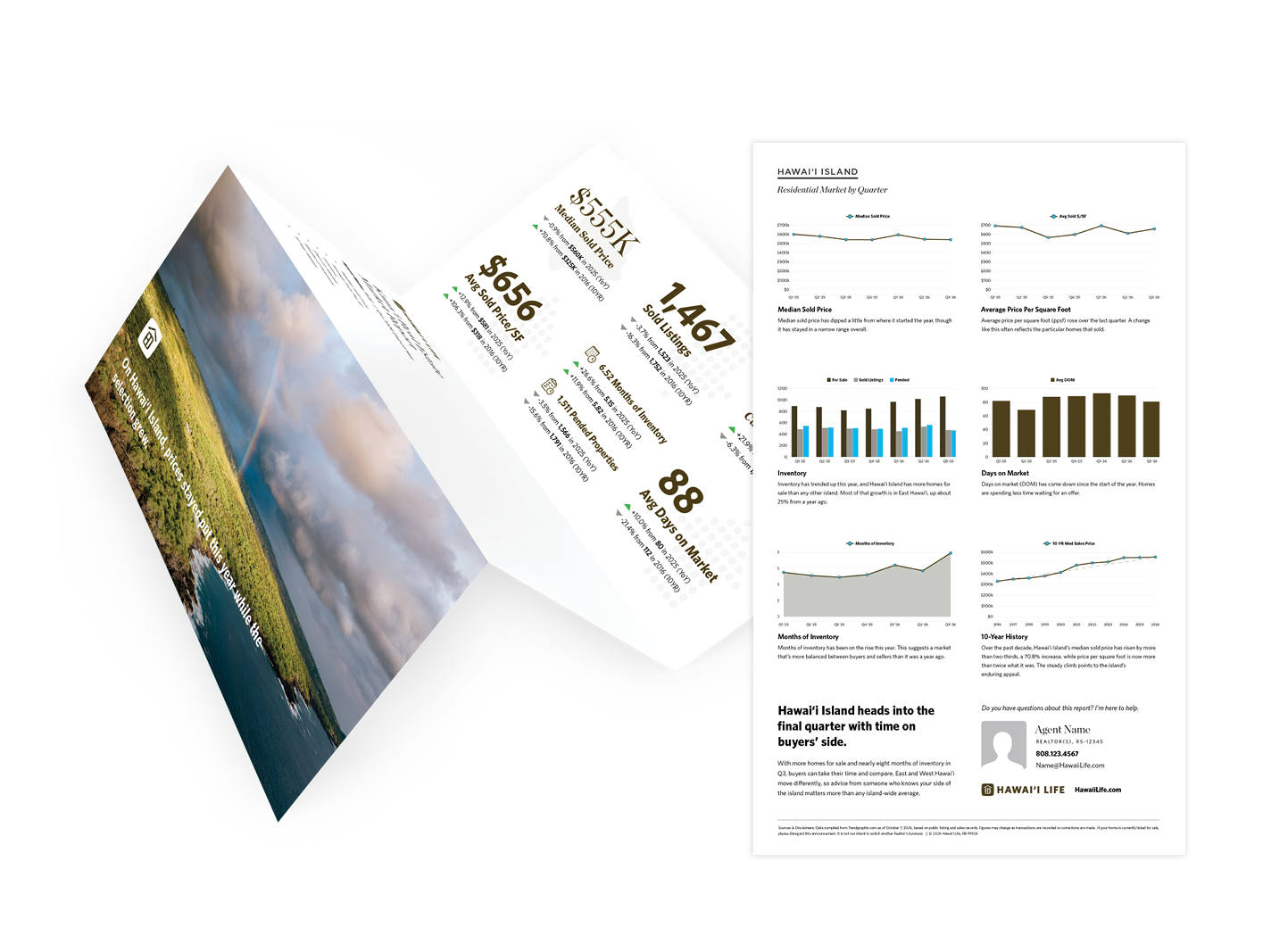
Order Printed Mailouts from the Create Team
A professionally printed, high-impact market report mailed directly to your clients. Trifold mailers are produced by the Create Team and mailed via local vendors.
Specs:
• UV coated 8.5″ x 14″ flat (8.5″ x 4.7″ when folded)
• View pricing and details
How it works:
• Ordered via request form
• Mailing list required
Need Help?
Create Team
If you’d like help refining copy, elevating photos, or getting comfortable in the workflow, we’re here. Just reach out to Create.
Help With Lists
If you’d like help getting your lists set up in the Hub, Adam in Operations is here to help you. Just reach out to Adam Snyder.
In-App Support
Rechat has excellent support built right in. Tap the ? icon in the Hub for live assistance, visit help.rechat.com, or email support@rechat.com.
Your marketing is at your fingertips in the Hub. If you need anything, we’re right here with you.
How Market Reports Work in The Hub
Open The Hub
Navigate to Marketing Center / Market Reports
Choose your report format (Emailer, Print PDF, Social, Video)
Choose the Standard or Luxury Market Add-On template
Select a listing to feature from the listing prompt (email only)
Customize your featured listing and submarket snapshot
Send or share to your SOI when ready
Play the Video Tutorial about Market Reports in the Hub
Frequently Asked Questions
-
All digital Market Report tools, including emailers, PDFs, social graphics, and videos, are available instantly in The Hub. Simply log in, navigate to Marketing Center / Market Reports and select your report, customize, and share.
-
If you’d like help getting your lists set up in the Hub, Adam in Operations is here to help you. Just reach out to Adam Snyder.
-
Open your Market Report Emailer in The Hub
Scroll to the Featured Listings section
Click on the photo and text to edit
Watch: Editing the Featured Listing
-
Open your Market Report Emailer in The Hub
Scroll to the Featured Listings section
In the right-hand studio menu click on Listings
Select and drag the Image Top block under the first featured listing
From the Listing Prompt Window, select your desired listing (or enter the listing info manually)
The new listing feature will auto populate in place.
-
Open your Market Report Emailer in The Hub
Scroll to the Featured Listings section
Hover above the listing feature photo to find and click on the blue outer section box.
Click the Delete button
Hover above the “Featured Listings” text to find and click on the blue outer section box.
Click the Delete button
-
Open your Market Report Emailer in The Hub
Click directly on the Submarket Table graphic
Select the Change Photo icon from the image menu
In the gallery window, choose Your Gallery
Use the search bar to find your desired submarket
(for example: “Diamond Head,” “Hawai‘i Kai,” “ʻEwa,” etc.)Select the appropriate submarket graphic
The new Submarket Snapshot will automatically drop into your emailer.
-
Open your Market Report Emailer in The Hub
Click directly on the Submarket Table graphic
Use the Duplicate option to create a second submarket table
Click on the newly duplicated submarket table
Select the Change Photo icon from the image menu
In the gallery window, choose Your Gallery
Use the search bar to search for and select the additional submarket you’d like to feature
(for example: “East Hawaii Island,” “West Hawaii Island,” etc.)Select the appropriate submarket graphic
The new Submarket Snapshot will automatically drop into your emailer.
-
Kauai
North Shore Kauai
East Kauai
South Kauai
West Kauai
Maui
West Maui
Upcountry Maui
South Maui
North Shore Maui
Central Maui
Molokai
Hawaii Island
East Hawaii Island
West Hawaii Island
Oahu
Kaneohe Oahu
Hawaii Kai Oahu
Ewaplain Oahu
Diamond Head Oahu
Central Oahu
Waipahu Oahu
Pearl City Oahu
North Shore Oahu
Metro Oahu
Makakilo Oahu
Leeward Oahu
Kailua Oahu
-
Open your Market Report Emailer in The Hub
Scroll to the Agent CTA section
In the right-hand studio menu click on Agents
Select and drag the Agent-Multi block into the email
From the Agent Prompt Window, select your desired contacts
To remove the original single agent contact, hover near the headshot to find and select the blue section box and click Delete.
Watch: How to Add a Co-Lister Agent
-
Of course. It can get a little tricky in there, especially your first time. Contact Create and we’ll jump in The Hub and collaborate with you.
-
Easy. Same process as normal. Fill out the form above or contact us in Create. We’ll help you customize the mail-out and send to your SOI.
-
The full set of market report art parts can be found here.
